🔥 Get 3 months access to 600+ books and courses for $3/m
07:48:30
Skip to main content

How to Make a Simple JavaScript Quiz

Share:

JavaScript: Novice to Ninja, 2nd Edition

Build your JavaScript skills on a rock-solid foundation.

“How do I make a JavaScript quiz?” is one of the most common questions asked by people learning web development, and for good reason. Quizzes are fun! They’re a great way of learning about new subjects, and they allow you to engage your audience with something fun and playful.

This popular article was updated in 2020 to reflect the current best practices in JavaScript. For more in-depth JavaScript knowledge, read our book, JavaScript: Novice to Ninja, 2nd Edition.

How to Make a JavaScript Quiz

Coding your own JavaScript quiz is also a fantastic learning exercise. It teaches you how to deal with events, manipulate the DOM, handle user input, give feedback to the user and keep track of their score (for example, using client-side storage). And when you have a basic quiz up and running, there are a whole bunch of possibilities to add more advanced functionality, such as pagination. I go into this at the end of the article.

In this tutorial, I’ll walk you though creating a multi-step JavaScript quiz which you’ll be able to adapt to your needs and add to your own site. If you’d like to see what we’ll be ending up with, you can skip ahead and see the working quiz.

Things to Be Aware of Before Starting

A few things to know before starting:

  • This is a front-end tutorial, meaning that anyone who knows how to look through the source code of a page can find the answers. For serious quizzes, the data needs to be handled through the back end, which is beyond the scope of this tutorial.
  • The code in this article uses modern JavaScript syntax (ES6+), meaning it will not be compatible with any versions of Internet Explorer. However, it will work just fine on modern browsers, including Microsoft Edge.
  • If you need to support older browsers, I’ve written a JavaScript quiz tutorial that’s compatible back to IE8. Or, if you’d like a refresher on ES6, check out this course by Darin Haener over on SitePoint Premium.
  • You’ll need some familiarity with HTML, CSS, and JavaScript, but each line of code will be explained individually.

The Basic Structure of Your JavaScript Quiz

Ideally, we want the quiz’s questions and answers to be in our JavaScript code and have our script automatically generate the quiz. That way, we won’t need to write a lot of repetitive markup, and we can add and remove questions easily.

To set up the structure of our JavaScript quiz, we’ll need to start with the following HTML:

  • A <div> to hold the quiz
  • A <button> to submit the quiz
  • A <div> to display the results

Here’s how that would look:

<div id="quiz"></div>
<button id="submit">Submit Quiz</button>
<div id="results"></div>

We can then select these HTML elements and store references to them in variables like so:

const quizContainer = document.getElementById('quiz');
const resultsContainer = document.getElementById('results');
const submitButton = document.getElementById('submit');

Next we’ll need a way to build a quiz, show results, and put it all together. We can start by laying out our functions, and we’ll fill them in as we go:

function buildQuiz(){}

function showResults(){}

// display quiz right away
buildQuiz();

// on submit, show results
submitButton.addEventListener('click', showResults);

Here, we have functions to build the quiz and show the results. We’ll run our buildQuiz function immediately, and we’ll have our showResults function run when the user clicks the submit button.

Displaying the Quiz Questions

The next thing our quiz needs is some questions to display. We’ll use object literals to represent the individual questions and an array to hold all of the questions that make up our quiz. Using an array will make the questions easy to iterate over:

const myQuestions = [
  {
    question: "Who invented JavaScript?",
    answers: {
      a: "Douglas Crockford",
      b: "Sheryl Sandberg",
      c: "Brendan Eich"
    },
    correctAnswer: "c"
  },
  {
    question: "Which one of these is a JavaScript package manager?",
    answers: {
      a: "Node.js",
      b: "TypeScript",
      c: "npm"
    },
    correctAnswer: "c"
  },
  {
    question: "Which tool can you use to ensure code quality?",
    answers: {
      a: "Angular",
      b: "jQuery",
      c: "RequireJS",
      d: "ESLint"
    },
    correctAnswer: "d"
  }
];

Feel free to put in as many questions or answers as you want.

Note: as this is an array, the questions will appear in the order they’re listed. If you want to sort the questions in any way before presenting them to the user, check out our quick tip on sorting an array of objects in JavaScript.

Now that we have our list of questions, we can show them on the page. We’ll go through the following JavaScript line by line to see how it works:

function buildQuiz(){
  // variable to store the HTML output
  const output = [];

  // for each question...
  myQuestions.forEach(
    (currentQuestion, questionNumber) => {

      // variable to store the list of possible answers
      const answers = [];

      // and for each available answer...
      for(letter in currentQuestion.answers){

        // ...add an HTML radio button
        answers.push(
          `<label>
            <input type="radio" name="question${questionNumber}" value="${letter}">
            ${letter} :
            ${currentQuestion.answers[letter]}
          </label>`
        );
      }

      // add this question and its answers to the output
      output.push(
        `<div class="question"> ${currentQuestion.question} </div>
        <div class="answers"> ${answers.join('')} </div>`
      );
    }
  );

  // finally combine our output list into one string of HTML and put it on the page
  quizContainer.innerHTML = output.join('');
}

First, we create an output variable to contain all the HTML output including questions and answer choices.

Next, we can start building the HTML for each question. We’ll need to loop through each question like so:

Build better and faster

Get up and running with the powerful and modern Vue.js

Read the book now
myQuestions.forEach( (currentQuestion, questionNumber) => {
  // the code we want to run for each question goes here
});

For brevity, we’re using an arrow function to perform our operations on each question. Because this is in a forEach loop, we get the current value, the index (the position number of the current item in the array), and the array itself as parameters. We only need the current value and the index, which for our purposes, we’ll name currentQuestion and questionNumber respectively.

Now let’s look a the code inside our loop:

// we'll want to store the list of answer choices
const answers = [];

// and for each available answer...
for(letter in currentQuestion.answers){

  // ...add an html radio button
  answers.push(
    `<label>
      <input type="radio" name="question${questionNumber}" value="${letter}">
      ${letter} :
      ${currentQuestion.answers[letter]}
    </label>`
  );
}

// add this question and its answers to the output
output.push(
  `<div class="question"> ${currentQuestion.question} </div>
  <div class="answers"> ${answers.join('')} </div>`
);

For each question, we’ll want to generate the correct HTML, and so our first step is to create an array to hold the list of possible answers.

Next, we’ll use a loop to fill in the possible answers for the current question. For each choice, we’re creating an HTML radio button, which we enclose in a <label> element. This is so that users will be able to click anywhere on the answer text to select that answer. If the label was omitted, then users would have to click on the radio button itself, which is not very accessible.

Notice we’re using template literals, which are strings but more powerful. We’ll make use of the following features:

  • multi-line capabilities
  • no more having to escape quotes within quotes because template literals use backticks instead
  • string interpolation, so you can embed JavaScript expressions right into your strings like this: ${code_goes_here}.

Once we have our list of answer buttons, we can push the question HTML and the answer HTML onto our overall list of outputs.

Notice that we’re using a template literal and some embedded expressions to first create the question div and then create the answer div. The join expression takes our list of answers and puts them together in one string that we can output into our answers div.

Now that we’ve generated the HTML for each question, we can join it all together and show it on the page:

quizContainer.innerHTML = output.join('');

Now our buildQuiz function is complete.

You should be able to run the quiz at this point and see the questions displayed. Please note, however, that the structure of your code is important. Due to something called the temporal dead zone, you can’t reference your questions array before it has been defined.

To recap, this is the correct structure:

// Functions
function buildQuiz(){ ... }
function showResults(){ ... }

// Variables
const quizContainer = document.getElementById('quiz');
const resultsContainer = document.getElementById('results');
const submitButton = document.getElementById('submit');
const myQuestions = [ ... ];

// Kick things off
buildQuiz();

// Event listeners
submitButton.addEventListener('click', showResults);

Displaying the Quiz Results

At this point, we want to build out our showResults function to loop over the answers, check them, and show the results.

Here’s the function, which we’ll go through in detail next:

function showResults(){

  // gather answer containers from our quiz
  const answerContainers = quizContainer.querySelectorAll('.answers');

  // keep track of user's answers
  let numCorrect = 0;

  // for each question...
  myQuestions.forEach( (currentQuestion, questionNumber) => {

    // find selected answer
    const answerContainer = answerContainers[questionNumber];
    const selector = `input[name=question${questionNumber}]:checked`;
    const userAnswer = (answerContainer.querySelector(selector) || {}).value;

    // if answer is correct
    if(userAnswer === currentQuestion.correctAnswer){
      // add to the number of correct answers
      numCorrect++;

      // color the answers green
      answerContainers[questionNumber].style.color = 'lightgreen';
    }
    // if answer is wrong or blank
    else{
      // color the answers red
      answerContainers[questionNumber].style.color = 'red';
    }
  });

  // show number of correct answers out of total
  resultsContainer.innerHTML = `${numCorrect} out of ${myQuestions.length}`;
}

First, we select all the answer containers in our quiz’s HTML. Then we’ll create variables to keep track of the user’s current answer and the total number of correct answers.

// gather answer containers from our quiz
const answerContainers = quizContainer.querySelectorAll('.answers');

// keep track of user's answers
let numCorrect = 0;

Now we can loop through each question and check the answers.

// for each question...
myQuestions.forEach( (currentQuestion, questionNumber) => {

  // find selected answer
  const answerContainer = answerContainers[questionNumber];
  const selector = `input[name=question${questionNumber}]:checked`;
  const userAnswer = (answerContainer.querySelector(selector) || {}).value;

  // if answer is correct
  if(userAnswer === currentQuestion.correctAnswer){
    // add to the number of correct answers
    numCorrect++;

    // color the answers green
    answerContainers[questionNumber].style.color = 'lightgreen';
  }
  // if answer is wrong or blank
  else{
    // color the answers red
    answerContainers[questionNumber].style.color = 'red';
  }
});

The general gist of this code is:

  • find the selected answer in the HTML
  • handle what happens if the answer is correct
  • handle what happens if the answer is wrong.

Let’s look more closely at how we’re finding the selected answer in our HTML:

// find selected answer
const answerContainer = answerContainers[questionNumber];
const selector = `input[name=question${questionNumber}]:checked`;
const userAnswer = (answerContainer.querySelector(selector) || {}).value;

First, we’re making sure we’re looking inside the answer container for the current question.

In the next line, we’re defining a CSS selector that will let us find which radio button is checked.

Then we’re using JavaScript’s querySelector to search for our CSS selector in the previously defined answerContainer. In essence, this means that we’ll find which answer’s radio button is checked.

Finally, we can get the value of that answer by using .value.

Dealing with Incomplete User Input

But what if the user has left an answer blank? In this case, using .value would cause an error because you can’t get the value of something that’s not there. To solve this, we’ve added ||, which means “or”, and {}, which is an empty object. Now the overall statement says:

  • Get a reference to our selected answer element OR, if that doesn’t exist, use an empty object.
  • Get the value of whatever was in the first statement.

As a result, the value will either be the user’s answer or undefined, which means a user can skip a question without crashing our quiz.

Evaluating the Answers and Displaying the Result

The next statements in our answer-checking loop will let us handle correct and incorrect answers.

// if answer is correct
if(userAnswer === currentQuestion.correctAnswer){
  // add to the number of correct answers
  numCorrect++;

  // color the answers green
  answerContainers[questionNumber].style.color = 'lightgreen';
}
// if answer is wrong or blank
else{
  // color the answers red
  answerContainers[questionNumber].style.color = 'red';
}

If the user’s answer matches the correct choice, increase the number of correct answers by one and (optionally) color the set of choices green. If the answer is wrong or blank, color the answer choices red (again, optional).

Once the answer-checking loop is finished, we can show how many questions the user got right:

// show number of correct answers out of total
resultsContainer.innerHTML = `${numCorrect} out of ${myQuestions.length}`;

And now we have a working JavaScript quiz!

If you’d like, you can wrap the whole quiz in an IIFE (immediately invoked function expression), which is a function that runs as soon as you define it. This will keep your variables out of global scope and ensure that your quiz doesn’t interfere with any other scripts running on the page.

(function(){
  // put the rest of your code here
})();

Now you’re all set! Feel free to add or remove questions and answers and style the quiz however you like.

At this point, your quiz might look like this (with a tiny bit of styling):

Adding Pagination

Now we have our basic quiz running, let’s have a look at some more advanced features. For example, let’s say you want to show only one question at a time.

You’ll need:

  • a way to show and hide questions
  • buttons to navigate the quiz.

We’ll need to make some updates, so let’s start with the HTML:

<div class="quiz-container">
  <div id="quiz"></div>
</div>
<button id="previous">Previous Question</button>
<button id="next">Next Question</button>
<button id="submit">Submit Quiz</button>
<div id="results"></div>

Most of that markup is the same as before, but now we’ve added navigation buttons and a quiz container. The quiz container will help us position the questions as layers that we can show and hide.

Next, inside the buildQuiz function, we need to add a <div> element with class slide to hold the question and answer containers that we just created:

output.push(
  `<div class="slide">
    <div class="question"> ${currentQuestion.question} </div>
    <div class="answers"> ${answers.join("")} </div>
  </div>`
);

Next, we can use some CSS positioning to make the slides sit as layers on top of one another. In this example, you’ll notice we’re using z-indexes and opacity transitions to allow our slides to fade in and out. Here’s what that CSS might look like:

.slide{
  position: absolute;
  left: 0px;
  top: 0px;
  width: 100%;
  z-index: 1;
  opacity: 0;
  transition: opacity 0.5s;
}
.active-slide{
  opacity: 1;
  z-index: 2;
}
.quiz-container{
  position: relative;
  height: 200px;
  margin-top: 40px;
}

Now we’ll add some JavaScript to make the pagination work. As before, order is important, so this the revised structure of our code:

// Functions
// New functions go here

// Variables
// Same code as before

// Kick things off
buildQuiz();

// Pagination
// New code here

// Show the first slide
showSlide(currentSlide);

// Event listeners
// New event listeners here

We can start with some variables to store references to our navigation buttons and keep track of which slide we’re on. Add these after the call to buildQuiz(), as shown above:

// Pagination
const previousButton = document.getElementById("previous");
const nextButton = document.getElementById("next");
const slides = document.querySelectorAll(".slide");
let currentSlide = 0;

Next we’ll write a function to show a slide. Add this beneath the existing functions (buildQuiz and showResults):

function showSlide(n) {
  slides[currentSlide].classList.remove('active-slide');
  slides[n].classList.add('active-slide');
  currentSlide = n;
  if(currentSlide === 0){
    previousButton.style.display = 'none';
  }
  else{
    previousButton.style.display = 'inline-block';
  }
  if(currentSlide === slides.length-1){
    nextButton.style.display = 'none';
    submitButton.style.display = 'inline-block';
  }
  else{
    nextButton.style.display = 'inline-block';
    submitButton.style.display = 'none';
  }
}

Here’s what the first three lines do:

  • Hide the current slide by removing the active-slide class.
  • Show the new slide by adding the active-slide class.
  • Update the current slide number.

The next lines introduce the following logic:

  • If we’re on the first slide, hide the Previous Slide button. Otherwise, show the button.
  • If we’re on the last slide, hide the Next Slide button and show the Submit button. Otherwise, show the Next Slide button and hide the Submit button.

After we’ve written our function, we can immediately call showSlide(0) to show the first slide. This should come after the pagination code:

// Pagination
...

showSlide(currentSlide);

Next we can write functions to make the navigation buttons work. These go beneath the showSlide function:

function showNextSlide() {
  showSlide(currentSlide + 1);
}

function showPreviousSlide() {
  showSlide(currentSlide - 1);
}

Here, we’re making use of our showSlide function to allow our navigation buttons to show the previous slide and the next slide.

Finally, we’ll need to hook the navigation buttons up to these functions. This comes at the end of the code:

// Event listeners
...
previousButton.addEventListener("click", showPreviousSlide);
nextButton.addEventListener("click", showNextSlide);

Now your quiz has working navigation!

What’s Next?

Now that you have a basic JavaScript quiz, it’s time to get creative and experiment.

Here are some suggestions you can try:

  • Try different ways of responding to a correct answer or a wrong answer.
  • Style the quiz nicely.
  • Add a progress bar.
  • Let users review answers before submitting.
  • Give users a summary of their answers after they submit.
  • Update the navigation to let users skip to any question number.
  • Create custom messages for each level of results. For example, if someone scores 8/10 or higher, call them a quiz ninja.
  • Add a button to share results to social media.
  • Save your high scores using localStorage.
  • Add a countdown timer to see if people can beat the clock.
  • Apply the concepts from this article to other uses, such as a project price estimator, or a social “which-character-are-you” quiz.

Yaphi Berhanu is a web developer who loves helping people boost their coding skills. He writes tips and tricks at http://simplestepscode.com. In his completely unbiased opinion, he suggests checking it out.

Currently I work for SitePoint as editor of their JavaScript hubs and technical editor for various books (e.g. JavaScript: Novice to Ninja and Jump Start Vue.js). I also work as a network admin and freelance web dev, where I spend a fair bit of my time working on Rails apps.

New books out now!

Get practical advice to start your career in programming!


Master complex transitions, transformations and animations in CSS!

Create React App: Get React Projects Ready Fast

By Pavels Jelisejevs

JavaScript

Share:

JavaScript: Novice to Ninja, 2nd Edition
Build your JavaScript skills on a rock-solid foundation.

Starting a new React project isn’t that simple. Instead of diving straight into code and bringing your application to life, you have to spend time configuring the right build tools to set up a local development environment, unit testing, and a production build. Luckily, help is at hand in the form of Create React App.

Create-React-App is a command-line tool from Facebook that allows you to generate a new React project and use a pre-configured webpack build for development. It has long since become an integral part of the React ecosystem that removes the need to maintain complex build pipelines in your project, letting you focus on the application itself.

How Does Create React App Work?

Create React App is a standalone tool that can be run using either npm or Yarn.

You can generate and run a new project using npm just with a couple of commands:

npx create-react-app new-app
cd new-app
npm start

If you prefer Yarn, you can do it like this:

yarn create react-app new-app
cd new app
yarn start

Create React App will set up the following project structure:

new-app
├── .gitignore
├── node_modules
├── package.json
├── public
│   ├── favicon.ico
│   ├── index.html
│   ├── logo192.png
│   ├── logo512.png
│   ├── manifest.json
│   └── robots.txt
├── README.md
├── src
│   ├── App.css
│   ├── App.js
│   ├── App.test.js
│   ├── index.css
│   ├── index.js
│   ├── logo.svg
│   ├── reportWebVitals.js
│   └── setupTests.js
└── yarn.lock

It will also add a react-scripts package to your project that will contain all of the configuration and build scripts. In other words, your project depends on react-scripts, not on create-react-app itself. Once the installation is complete, you can fire up the dev server and start working on your project.

Basic Features

Local Development Server

The first thing you’ll need is a local development environment. Running npm start will fire up a webpack development server with a watcher that will automatically reload the application once you change something. Starting from v4, Create React App supports React’s fast refresh as an alternative to Hot Module Replacement. Like its predecessor, this allows us to quickly refresh parts of the application after making changes in the codebase, but has some new features as well. Fast Reload will try to reload only the modified part of the application, preserve the state of functional components and hooks, and automatically reload the application after correcting a syntax error.

You can also serve your application over HTTPS, by setting the HTTPS variable to true before running the server.

The application will be generated with many features built in.

ES6 and ES7

The application comes with its own Babel preset — babel-preset-react-app — to support a set of ES6 and ES7 features. Some of the supported features are:

  • Async/await
  • Object Rest/Spread Properties
  • Dynamic import()
  • Class Fields and Static Properties

Note that Create React App does not provide any polyfills for runtime features, so if you need any of these, you need to include them yourself.

Asset Import

You can import CSS files, images, or fonts from your JavaScript modules that allow you to bundle files used in your application. Once the application is built, Create React App will copy these files into the build folder. Here’s an example of importing an image:

import image from './image.png';

console.log(image); // image will contain the public URL of the image

You can also use this feature in CSS:

.image {
  background-image: url(./image.png);
}

Styling

As mentioned in the previous section, Create React App allows you to add styles by just importing the required CSS files. When building the application, all of the CSS files will be concatenated into a single bundle and added to the build folder.

Create React App also supports CSS modules. By convention, files named as *.module.css are treated as CSS modules. This technique allows us to avoid conflicts of CSS selectors, since Create React App will create unique class selectors in the resulting CSS files.

Alternatively, if you prefer to use CSS preprocessors, you can import Sass .scss files. However, you’ll need to install the node-sass package separately.

Additionally, Create React App provides a way to add CSS Resets by adding @import-normalize; anywhere in your CSS files. Styles also undergo post-processing, which minifies them, adds vendor prefixes using Autoprefixer, and polyfills unsupported features, such as the all property, custom properties, and media query ranges.

Build better and faster

Get up and running with the powerful and modern Vue.js

Read the book now

Running Unit Tests

Executing npm test will run tests using Jest and start a watcher to re-run them whenever you change something:

 PASS  src/App.test.js
  ✓ renders learn react link (19 ms)

Test Suites: 1 passed, 1 total
Tests:       1 passed, 1 total
Snapshots:   0 total
Time:        0.995 s
Ran all test suites.

Watch Usage
 › Press f to run only failed tests.
 › Press o to only run tests related to changed files.
 › Press q to quit watch mode.
 › Press p to filter by a filename regex pattern.
 › Press t to filter by a test name regex pattern.
 › Press Enter to trigger a test run.

Jest is a test runner also developed by Facebook as an alternative to Mocha or Karma. It runs the tests in a Node environment instead of a real browser, but provides some of the browser-specific globals using jsdom.

Jest also comes integrated with your version control system and by default will only run tests on files changed since your last commit. For more on this, refer to “How to Test React Components Using Jest”.

ESLint

During development, your code will also be run through ESLint, a static code analyzer that will help you spot errors during development.

Creating a Production Bundle

When you finally have something to deploy, you can create a production bundle using npm run build. This will generate an optimized build of your application, ready to be deployed to your environment. The generated artifacts will be placed in the build folder:

build
├── asset-manifest.json
├── favicon.ico
├── index.html
├── logo192.png
├── logo512.png
├── manifest.json
├── robots.txt
└── static
    ├── css
    │   ├── main.ab7136cd.chunk.css
    │   └── main.ab7136cd.chunk.css.map
    ├── js
    │   ├── 2.8daf1b57.chunk.js
    │   ├── 2.8daf1b57.chunk.js.LICENSE.txt
    │   ├── 2.8daf1b57.chunk.js.map
    │   ├── 3.d75458f9.chunk.js
    │   ├── 3.d75458f9.chunk.js.map
    │   ├── main.1239da4e.chunk.js
    │   ├── main.1239da4e.chunk.js.map
    │   ├── runtime-main.fb72bfda.js
    │   └── runtime-main.fb72bfda.js.map
    └── media
        └── logo.103b5fa1.svg

Deployment

Since the build of your Create React App application consists of just static files, there are different ways you can deploy them to your remote environment. You can use a Node.js server if you’re running in a Node.js environment, or serve the application using a different web server, such as NGINX.

The deployment section in the official documentation provides an overview of how to deploy the application to Azure, AWS, Heroku, Netlify, and other popular hosting environments.

Development Features

Environment variables

You can use Node environment variables to inject values into your code at build time. Create React App will automatically look for any environment variables starting with REACT_APP_ and make them available under the global process.env. These variables can be in a .env file for convenience:

REACT_APP_BACKEND=http://my-api.com
REACT_APP_BACKEND_USER=root

You can then reference them in your code:

fetch({process.env.REACT_APP_SECRET_CODE}/endpoint)

Proxying to a Back End

If your application will be working with a remote back end, you might need to be able to proxy requests during local development to bypass CORS. This can be set up by adding a proxy field to your package.json file:

"proxy": "http://localhost:4000",

This way, the server will forward any request that doesn’t point to a static file to the given address.

Code Splitting

Create React App supports code splitting using the dynamic import() directive. Instead of returning the values exported by the module, it will instead return a Promise that resolves into these values. As a result, modules imported this way won’t be included in the final bundle, but built into separate files. This allows you to reduce the size of the final bundle and load content on demand.

TypeScript Support

You can enable TypeScript to get the benefits of static type analysis when generating a new project. This can be done by using a different non-default template for generating the project:

npx create-react-app my-app --template typescript

You can also add TypeScript support to an existing project, as described in the documentation.

Progressive Web Apps

Similarly, you can add progressive web app support. You can use service workers by adding a src/service-worker.js file. Starting from v4, this will be injected into the application using the Workbox library.

To enable service workers in a new project, they need to be generated from a custom template:

npx create-react-app my-app --template cra-template-pwa

# or with TypeScript support
npx create-react-app my-app --template cra-template-pwa-typescript

Web Vitals

Create React App allows you to measure the performance and responsiveness of your application. This is done by tracking the metrics defined by web vitals and measured using the web-vitals library. The metrics include Largest Contentful Paint, which measures loading performance, First Input Delay, and Cumulative Layout Shift for responsiveness.

Create React App provides a convenient function to track all of the available metrics:

// index.js

reportWebVitals(console.log);

Opting Out

If at some point you feel that the features provided are no longer enough for your project, you can always opt out of using react-scripts by running npm run eject. This will copy the webpack configuration and build scripts from react-scripts into your project and remove the dependency. After that, you’re free to modify the configuration however you see fit.

As an alternative, you can also fork react-scripts and maintain your branch with the features you need. This can be easier, in case you have many projects to maintain.

In Conclusion

If you’re looking to start a new React project, look no further. Create React App will allow you to quickly start working on your application instead of writing yet another webpack config. It also makes it easy to update your build tooling with a single command (npm install react-scripts@latest) — something that’s typically a daunting and time-consuming task.

Create React App has become an integral part of the React ecosystem. Whether you use it to throw together a quick prototype, or to scaffold out your next major project, it will save you many hours of dev time.

Pavels is a software developer from Riga, Latvia, with a keen interest for everything web-related. His interests range from back-end to front-end development, as well as analysis and automation. If you have something to discuss, you can always reach him via Facebook or LinkedIn.

New books out now!

Get practical advice to start your career in programming!


Master complex transitions, transformations and animations in CSS!

Getting Started with React Native

By Wern Ancheta

JavaScript

Share:

JavaScript: Novice to Ninja, 2nd Edition

Build your JavaScript skills on a rock-solid foundation.

With the ever-increasing popularity of smartphones, developers are looking into solutions for building mobile applications. For developers with a web background, frameworks such as Cordova and Ionic, React Native, NativeScript, and Flutter allow us to create mobile apps with languages we’re already familiar with: HTML, XML, CSS, and JavaScript.

In this guide, we’ll take a closer look at React Native. You’ll learn the absolute basics of getting started with it. Specifically, we’ll cover the following:

  • what React Native is
  • what Expo is
  • how to set up an React Native development environment using Expo
  • how to create an app with React Native

Prerequisites

This tutorial assumes that you’re coming from a web development background. The minimum requirement for you to be able to confidently follow this tutorial is to know HTML, CSS, and JavaScript. You should also know how to install software on your operating system and work with the command line. We’ll also be using some ES6 syntax, so it would help if you know basic ES6 syntax as well. Knowledge of React is helpful but not required.

What is React Native?

React Native is a framework for building apps that work on both Android and iOS. It allows you to create real native apps using JavaScript and React. This differs from frameworks like Cordova, where you use HTML to build the UI, which will then just be displayed within the device’s integrated mobile browser (WebView). React Native has built-in components which are compiled to native UI components, while your JavaScript code is executed through a virtual machine. This makes React Native more performant than Cordova.

Another advantage of React Native is its ability to access native device features. There are many plugins which you can use to access native device features, such as the camera and various device sensors. If you’re in need of a platform-specific feature that hasn’t been implemented yet, you can also build your own native modules — although that will require you to have considerable knowledge of the native platform you want to support (Java or Kotlin for Android, and Objective C or Swift for iOS).

If you’re coming here and you’re new to React, you might be wondering what it is. React is a JavaScript library for the Web for building user interfaces. If you’re familiar with MVC, it’s basically the View in MVC. React’s main purpose is to allow developers to build reusable UI components. Examples of these components include buttons, sliders, and cards. React Native took the idea of building reusable UI components and brought it into mobile app development.

What is Expo?

Before coming here, you might have heard of Expo. It’s even mentioned in the official React Native docs, so you might be wondering what it is.

In simple terms, Expo allows you to build React Native apps without the initial headache that comes with setting up your development environment. It only requires you to have Node installed on your machine, and the Expo client app on your device or emulator.

But that’s just how Expo is initially sold. In reality, it’s much more than that. Expo is actually a platform that gives you access to tools, libraries and services for building Android and iOS apps faster with React Native. Expo comes with an SDK which includes most of the APIs you can ask for in a mobile app development platform:

Those are just few of the APIs you get access to out of the box if you start building React Native apps with Expo. Of course, these APIs are available to you as well via native modules if you develop your app using the standard React Native setup.

Plain React Native or Expo?

The real question is which one to pick — plain React Native or Expo? There’s really no right or wrong answer. It all depends on the context and what your needs are. But I guess it’s safe to assume that you’re reading this tutorial because you want to quickly get started with React Native. So I’ll go ahead and recommend that you start out with Expo. It’s fast, simple, and easy to set up. You can dive right into tinkering with React Native code and get a feel of what it has to offer in just a couple of hours.

But as you begin to grasp the different concepts, and as the need for different native features arises, you might find that Expo is kind of limiting. Yes, it has a lot of native features available, but not all the native modules that are available to standard React Native projects are supported.

Note: projects like unimodules are beginning to close the gap between standard React Native projects and Expo projects, as it allows developers to create native modules that work for both React Native and ExpoKit.

Setting Up the React Native Development Environment

To quickly get started with React Native, the recommended method is to set up Expo.

The only prerequisite of setting up Expo is that you need to have Node.js installed in your machine. To do this, you can either head to the official Node download page and grab the relevant binaries for your system, or you can use a version manager, which allows you to install multiple versions of Node and switch between them at will.

Once you have Node.js installed, install the Expo CLI. This is used for creating, serving, packaging, and publishing projects:

npm install -g expo-cli

Next, install Yarn, the preferred package manager for Expo:

npm install -g yarn

That’s really all there is to it! The next step is to download the Expo client App for Android or iOS. Note that this is the only way you can run Expo apps while you’re still in development. When you’re ready to ship the app, you can follow this guide to create standalone binaries for iOS and Android which can be submitted to the Apple App Store and Google Play Store.

Build better and faster

Get up and running with the powerful and modern Vue.js

Read the book now

What We’ll Be Building

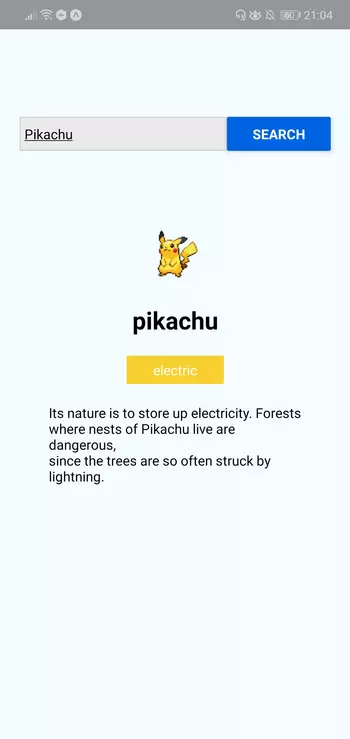
Now that your development environment is set up, we can look at the app we’re going to create — a Pokémon search app. It will allow the user to type the name of a Pokémon into an input box, before fetching the Pokémon’s details from an external API and displaying them to the user.

Here’s what the finished thing will look like:

Pokémon Search App

As ever, you can find the source code for this in our GitHub repo.

Bootstrapping the App

On your terminal, execute the following command to create a new React Native project using Expo:

expo init RNPokeSearch

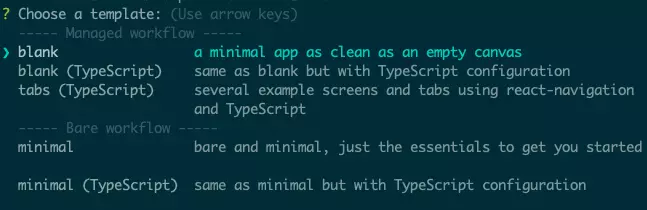
Under Managed Workflow, select blank. By default, this will install the dependencies using Yarn.

expo init

You might be asking what this Managed workflow and Bare workflow is. These are the two types of workflows that Expo supports. With a managed workflow, you only have to deal with JavaScript and Expo manages everything for you. While in Bare workflow, you have full control over the native code. It gives you the same freedom as the React Native CLI, but with the added bonus of Expo’s libraries and services. You can visit this managed vs bare intro page if you want to learn more about workflows in Expo.

Just like in a web environment, you can install libraries to easily implement different kinds of functionality in React Native. Once the project is created, we need to install a couple of dependencies: pokemon and axios. The former is used for verifying if the text entered in the search box is a real Pokémon name, while axios is used to make an HTTP request to the API that we’re using, namely the PokeAPI:

yarn add pokemon axios

React Native Project Directory Structure

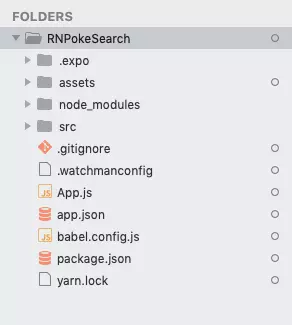
Before we proceed to coding, let’s first take a look at the directory structure of a React Native project created with Expo:

Expo project directory

Here’s a breakdown of the most important files and folders that you need to remember:

  • App.js: the main project file. This is where you’ll start developing your app. Any changes you make to this file will be reflected on the screen.
  • src: acts as the main folder which stores all the source code related to the app itself. Note that this isn’t included in the default project created by Expo CLI. The name of this folder can be anything. Some people use app as well.
  • assets: this is where the app assets such as icons and splash screens are stored.
  • package.json: where the name and versions of the libraries you installed for this project are added.
  • node_modules: where the libraries you installed are stored. Note that this already contains a lot of folders before you installed the two libraries earlier. This is because React Native also has its own dependencies. The same is true for all the other libraries you install.

Don’t mind the rest of the folders and files for now, as we won’t be needing them when just getting started.

Running the App

At this point, you can now run the app by executing the command below. Make sure that you’ve already installed the corresponding Expo client (Android or iOS) for your phone and that it’s connected to the same network as your computer before doing so. If you don’t have an Android or iOS device you can test with, you can use the Android Studio Emulator or the iOS simulator so you can run the app on your machine:

yarn start

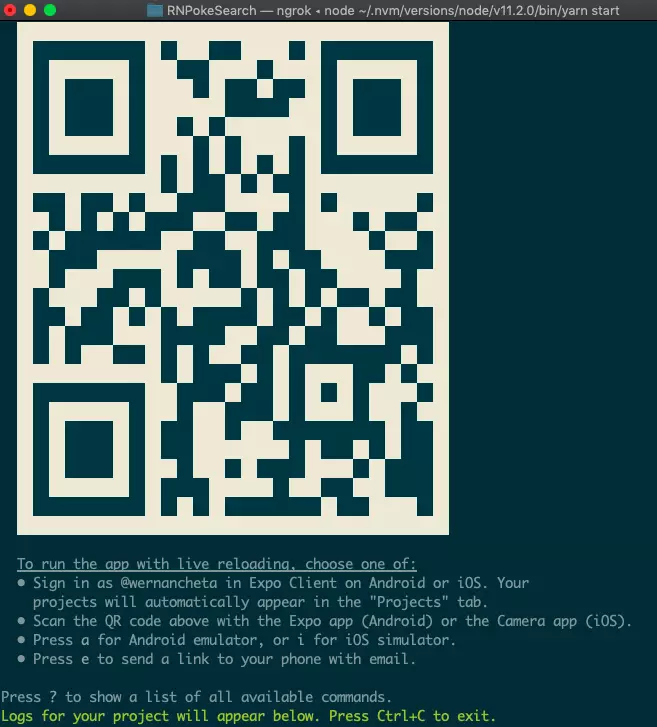
Once it’s running, it will display a QR code:

Expo yarn start

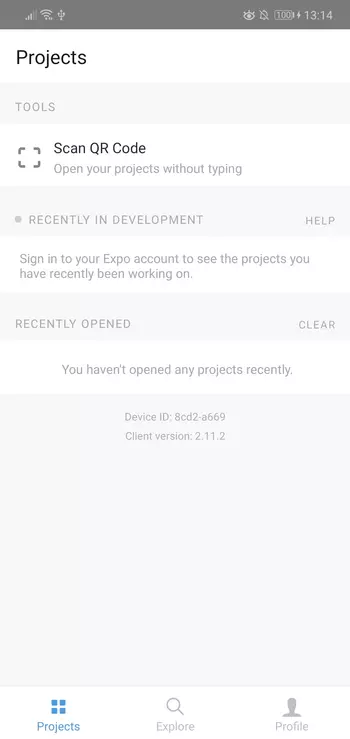
Open your Expo client app, and in the projects tab click on Scan QR Code. This will open the app on your Android or iOS device. If you have an emulator running, you can either press i to run it on the iOS simulator or a to run it on the Android emulator.

Expo client app

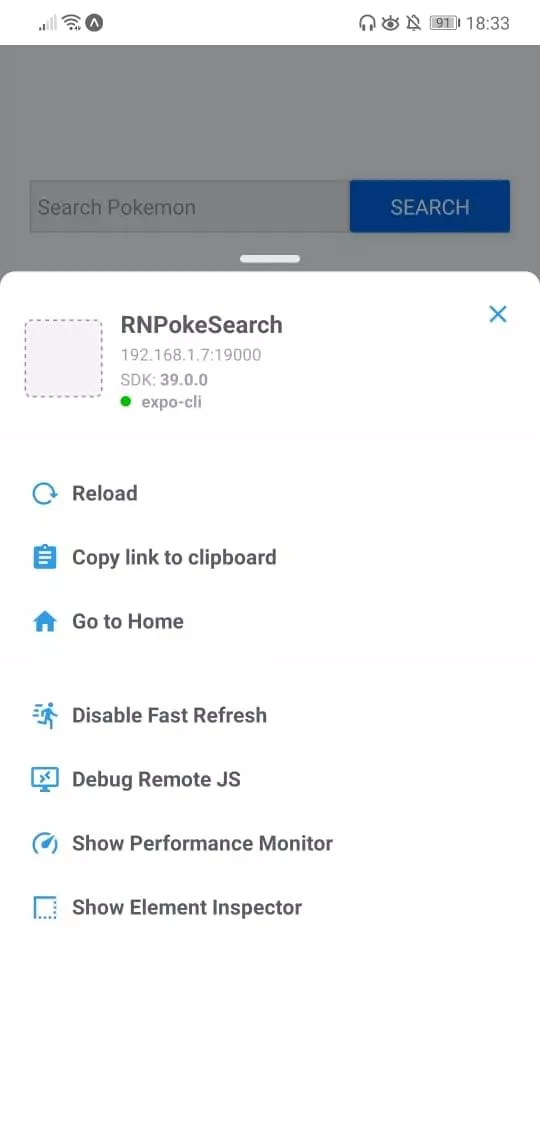
If you’re testing on a real device, shake it so the developer menu will show up.

React Native developer settings

Make sure that Fast Refresh is enabled. This allows you to automatically reload the changes that you make on your components.

Coding the App

Expo has many built-in components which you can use to accomplish what you want. Simply dig through the API documentation and you’ll find information on how to implement what you need. In most cases, you either need a specific UI component or an SDK which works with a service you plan on using. More often than not, here’s what your workflow is going to look like:

  1. Look for an existing package which implements what you want.
  2. Install it.
  3. Link it. This is only necessary if you’re on Expo’s bare workflow and the package you’ve installed has a corresponding native dependency.
  4. Use it in your project.

Now that you’ve set up your environment and learned a bit about the workflow, we’re ready to start coding the app.

First, let’s scaffold out the files we’ll need. These are src/Main.js, as well as src/components/Pokemon.js. The Main component will hold the code to display the search input and query the API, whereas the Pokemon component will be used to display the returned Pokémon data:

mkdir -p src/components
touch src/Main.js
touch src/components/Pokemon.js

Add some dummy content to both files:

// src/Main.js
import React, { Component } from 'react';

export default class Main extends Component {
  render() {
    return null;
  }
}
// src/components/Pokemon.js
import  React  from  'react';

const  Pokemon  =  ()  =>  null;

Next, replace the contents of the App.js file with the following code:

import React from 'react';
import Main from './src/Main';

function App() {
  return <Main />;
}

export default App;

The first line in the code above code imports React. You need to import this class any time you want create a component.

The second line is where we import the custom Main component. We’ll fill this in later, but for now, know that this is where we’ll put the majority of our code.

After that, we create the component by creating a new function. All this function does is return the Main component.

Lastly, we export the class so that it can be imported and rendered by Expo.

Next, in src/Main.js file and add the following:

// src/Main.js
import React, { Component } from 'react';
import {
  SafeAreaView,
  View,
  Text,
  TextInput,
  Button,
  Alert,
  StyleSheet,
  ActivityIndicator,
} from 'react-native';

The second line imports the components that are built into React Native. Here’s what each one does:

  • SafeAreaView: for rendering content within the safe area boundaries of a device. This automatically adds a padding that wraps its content so that it won’t be rendered on camera notches and sensor housing area of a device.
  • View: a fundamental UI building block. This is mainly used as a wrapper for all the other components so they’re structured in such a way that you can style them with ease. Think of it as the equivalent of <div>. If you want to use Flexbox, you have to use this component.
  • Text: for displaying text.
  • TextInput: the UI component for inputting text. This text can be plain text, email, password, or a number pad.
  • Button: for showing a platform-specific button. This component looks different based on the platform it runs on. If it’s Android, it uses Material Design. If it’s iOS, it uses Cupertino.
  • Alert: for showing alerts and prompts.
  • ActivityIndicator: for showing a loading animation indicator.
  • StyleSheet: for defining the component styles.

Next, import the libraries we installed earlier:

import axios from 'axios';
import pokemon from 'pokemon';

As well as the custom Pokemon component used for displaying Pokémon data:

import Pokemon from "./components/Pokemon";

Note: if Expo is unable to resolve the Pokemon (or any other) component, try restarting the server.

Because getting the required Pokémon data involves making two API requests, we have to set the API’s base URL as a constant:

const POKE_API_BASE_URL = 'https://pokeapi.co/api/v2';

Next, define the component class and initialize its state:

export default class Main extends Component {
  constructor(props) {
    super(props)

    this.state = {
      isLoading: false, // decides whether to show the activity indicator or not
      searchInput: '', // the currently input text
      name: '', // Pokémon name
      pic: '', // Pokémon image URL
      types: [], // Pokémon types array
      desc: '', // Pokémon description
    };
  }

  render() {
    return null;
  }
}

In the code above, we’re defining the main component of the app. You can do this by defining an ES6 class and having it extend React’s Component class. This is another way of defining a component in React. In the App.js file, we created a functional component. This time we’re creating a class-based component.

The main difference between the two is that functional components are used for presentation purposes only. Functional components have no need to keep their own state because all the data they require is just passed to them via props. On the other hand, class-based components maintain their own state and they’re usually the ones passing data to functional components. Note that this is the traditional way of creating components in React. A more modern approach would be to stick with a functional component and use the state hook to manage the state — though in this tutorial we’re just going to keep things simple and stick with a class-based component.

If you want to learn more about the difference between functional and class-based components, read the tutorial “Functional vs Class-Components in React”.

Going back to the code, we’re initializing the state inside our component. You define it as a plain JavaScript object. Any data that goes into the state should be responsible for changing what’s rendered by the component. In this case, we put in isLoading to control the visibility of the activity indicator and searchInput to keep track of the input value in the search box.

This is an important concept to remember. React Native’s built-in components, and even the custom components you create, accept properties that control the following:

  • what’s displayed on the screen (data source)
  • how they present it (structure)
  • what it looks like (styles)
  • what actions to perform when user interacts with it (functions)

We’ll go through those properties in more detail in the next section. For now, know that the values of those properties are usually updated through the state.

The rest of the state values are for the Pokémon data. It’s a good practice to set the initial value with the same type of data you’re expecting to store later on — as this serves as documentation as well.

Structuring and Styling Components

Let’s return to the component class definition. When you extend React’s Component class, you have to define a render() method. This contains the code for returning the component’s UI and it’s made up of the React Native components we imported earlier.

Each component has its own set of props. These are basically attributes that you pass to the component to control a specific aspect of it. In the code below, most of them have the style prop, which is used to modify the styles of a component. You can pass any data type as a prop. For example, the onChangeText prop of the TextInput is a function, while the types prop in the Pokemon is an array of objects. Later on in the Pokemon component, you’ll see how the props will be used.

Replace the render() method in Main.js with the following:

render() {
  const { name, pic, types, desc, searchInput, isLoading } = this.state; // extract the Pokémon data from the state

  return (
    <SafeAreaView style={styles.wrapper}>
      <View style={styles.container}>
        <View style={styles.headContainer}>
          <View style={styles.textInputContainer}>
            <TextInput
              style={styles.textInput}
              onChangeText={(searchInput) => this.setState({ searchInput })}
              value={this.state.searchInput}
              placeholder="Search Pokémon"
            />
          </View>
          <View style={styles.buttonContainer}>
            <Button
              onPress={this.searchPokemon}
              title="Search"
              color="#0064e1"
            />
          </View>
        </View>

        <View style={styles.mainContainer}>
          {isLoading && <ActivityIndicator size="large" color="#0064e1" />}

          {!isLoading && (
            <Pokemon name={name} pic={pic} types={types} desc={desc} />
          )}
        </View>
      </View>
    </SafeAreaView>
  );
}

Breaking down the code above, we first extract the state data:

const { name, pic, types, desc, searchInput, isLoading } = this.state;

Next, we return the component’s UI, which follows this structure:

SafeAreaView.wrapper;
  View.container;
    View.headContainer;
      View.textInputContainer;
        TextInput;
      View.buttonContainer;
        Button;
    View.mainContainer;
      ActivityIndicator;
        Pokemon;

The above structure is optimized for using Flexbox. Go ahead and define the component styles at the bottom of the file:

const styles = StyleSheet.create({
  wrapper: {
    flex: 1,
  },
  container: {
    flex: 1,
    padding: 20,
    backgroundColor: '#F5FCFF',
  },
  headContainer: {
    flex: 1,
    flexDirection: 'row',
    marginTop: 100,
  },
  textInputContainer: {
    flex: 2,
  },
  buttonContainer: {
    flex: 1,
  },
  mainContainer: {
    flex: 9,
  },
  textInput: {
    height: 35,
    marginBottom: 10,
    borderColor: '#ccc',
    borderWidth: 1,
    backgroundColor: '#eaeaea',
    padding: 5,
  },
});

In React Native, you define styles by using StyleSheet.create() and passing in the object that contains your styles. These style definitions are basically JavaScript objects, and they follow the same structure as your usual CSS styles:

element: {
  property: value;
}

The wrapper and container is set to flex: 1, which means it will occupy the entirety of the available space because they have no siblings. React Native defaults to flexDirection: 'column', which means it will lay out the flex items vertically.

flex direction column

In contrast, (flexDirection: 'row') lays out items horizontally.

flex direction row

It’s different for headContainer, because even though it’s set to flex: 1, it has mainContainer as its sibling. This means that headContainer and mainContainer will both share the same space. mainContainer is set to flex: 9 so it will occupy the majority of the available space (around 90%), while headContainer will only occupy about 10%.

Let’s move on to the contents of headContainer. It has textInputContainer and buttonContainer as its children. It’s set to flexDirection: 'row', so that its children will be laid out horizontally. The same principle applies when it comes to space sharing: textInputContainer occupies two thirds of the available horizontal space, while buttonContainer only occupies one third.

The rest of the styles are pretty self explanatory when you have a CSS background. Just remember to omit - and set the following character to uppercase. For example, if you want to set background-color, the React Native equivalent is backgroundColor.

Note: not all CSS properties that are available on the Web are supported in React Native. For example, things like floats or table properties aren’t supported. You can find the list of supported CSS properties in the docs for View and Text components. Someone has also compiled a React Native Styling Cheat Sheet, and there’s a style section in the documentation for a specific React Native component that you want to use. For example, here are the style properties that you can use for the Image component.

Event Handling and Updating the State

Let’s now break down the code for the TextInput and Button components. In this section, we’ll talk about event handling, making HTTP requests, and updating the state in React Native.

Let’s start by examining the code for TextInput:

<TextInput
  style={styles.textInput}
  onChangeText={(searchInput) => this.setState({ searchInput })}
  value={this.state.searchInput}
  placeholder="Search Pokémon"
/>

In the above code, we’re setting the function to execute when the user inputs something in the component. Handling events like this are similar to how they’re handled in the DOM: you simply pass the event name as a prop and set its value to the function you wish to execute. In this case, we’re inlining it because we’re just updating the state. The value input by the user is automatically passed as an argument to the function you supply, so all you have to do is update the state with that value. Don’t forget to set the value of the TextInput to that of the state variable. Otherwise, the value input by the user won’t show as they type.

Next, we move on to the Button component. Here, we’re listening for the onPress event:

<Button onPress={this.searchPokemon} title="Search" color="#0064e1" />

Once pressed, the searchPokemon() function is executed. Add this function right below the render() method. This function uses the async...await pattern because performing an HTTP request is an asynchronous operation. You can also use Promises, but to keep our code concise, we’ll stick with async/await instead. If you’re not familiar with this tecnique, be sure to read “Flow Control in Modern JS”.

// src/Main.js
import React, { Component } from 'react';
...
export default class Main extends Component {
  ...

  render() { ... }

  searchPokemon = async () => {
    try {
      const pokemonID = pokemon.getId(this.state.searchInput); // check if the entered Pokémon name is valid

      this.setState({
        isLoading: true, // show the loader while request is being performed
      });

      const { data: pokemonData } = await axios.get(
        `${POKE_API_BASE_URL}/pokemon/${pokemonID}`
      );
      const { data: pokemonSpecieData } = await axios.get(
        `${POKE_API_BASE_URL}/pokemon-species/${pokemonID}`
      );

      const { name, sprites, types } = pokemonData;
      const { flavor_text_entries } = pokemonSpecieData;

      this.setState({
        name,
        pic: sprites.front_default,
        types: this.getTypes(types),
        desc: this.getDescription(flavor_text_entries),
        isLoading: false, // hide loader
      });
    } catch (err) {
      Alert.alert('Error', 'Pokémon not found');
    }
  };
}

const styles = StyleSheet.create({ ... });

Breaking down the code above, we first check if the entered Pokémon name is valid. If it’s valid, the National Pokedex ID (if you open the link, that’s the number on top of the Pokémon name) is returned and we supply it as a parameter for the HTTP request. The request is made using axios’ get() method, which corresponds to an HTTP GET request. Once the data is available, we extract what we need and update the state.

Here’s the getTypes() function. All it does is reassign the slot and type properties of the Pokémon types to id and name:

getTypes = (types) =>
  types.map(({ slot, type }) => ({
    id: slot,
    name: type.name,
  }));

Here’s the getDescription() function. This finds the first English version of the flavor_text:

getDescription = (entries) =>
    entries.find((item) => item.language.name === 'en').flavor_text;

Add them after the searchPokemon function, like so:

import React, { Component } from 'react';
...
export default class Main extends Component {
  ...

  render() { ... }

  searchPokemon = async () => { ... };
  getTypes = (types) => types.map( ... );
  getDescription = (entries) => entries.find( ... );
}

const styles = StyleSheet.create({ ... });

Pokémon Component

Now that our app is fetching data from the API, it’s time to expand the Pokemon component we stubbed out earlier, so that we can display said data. Open the src/components/Pokemon.js file and replace the contents with the following:

import React from 'react';
import { View, Text, Image, FlatList, StyleSheet } from 'react-native';

const Pokemon = ({ name, pic, types, desc }) => {
  if (!name) {
    return null;
  }

  return (
    <View style={styles.mainDetails}>
      <Image source={{ uri: pic }} style={styles.image} resizeMode="contain" />
      <Text style={styles.mainText}>{name}</Text>

      <FlatList
        columnWrapperStyle={styles.types}
        data={types}
        numColumns={2}
        keyExtractor={(item) => item.id.toString()}
        renderItem={({ item }) => (
          <View style={[styles[item.name], styles.type]}>
            <Text style={styles.typeText}>{item.name}</Text>
          </View>
        )}
      />

      <View style={styles.description}>
        <Text>{desc}</Text>
      </View>
    </View>
  );
};

//
const styles = StyleSheet.create({
  mainDetails: {
    padding: 30,
    alignItems: 'center',
  },
  image: {
    width: 100,
    height: 100,
  },
  mainText: {
    fontSize: 25,
    fontWeight: 'bold',
    textAlign: 'center',
  },
  description: {
    marginTop: 20,
  },
  types: {
    flexDirection: 'row',
    marginTop: 20,
  },
  type: {
    padding: 5,
    width: 100,
    alignItems: 'center',
  },
  typeText: {
    color: '#fff',
  },
  normal: {
    backgroundColor: '#8a8a59',
  },
  fire: {
    backgroundColor: '#f08030',
  },
  water: {
    backgroundColor: '#6890f0',
  },
  electric: {
    backgroundColor: '#f8d030',
  },
  grass: {
    backgroundColor: '#78c850',
  },
  ice: {
    backgroundColor: '#98d8d8',
  },
  fighting: {
    backgroundColor: '#c03028',
  },
  poison: {
    backgroundColor: '#a040a0',
  },
  ground: {
    backgroundColor: '#e0c068',
  },
  flying: {
    backgroundColor: '#a890f0',
  },
  psychic: {
    backgroundColor: '#f85888',
  },
  bug: {
    backgroundColor: '#a8b820',
  },
  rock: {
    backgroundColor: '#b8a038',
  },
  ghost: {
    backgroundColor: '#705898',
  },
  dragon: {
    backgroundColor: '#7038f8',
  },
  dark: {
    backgroundColor: '#705848',
  },
  steel: {
    backgroundColor: '#b8b8d0',
  },
  fairy: {
    backgroundColor: '#e898e8',
  },
});

export default Pokemon;

In the code above, we first checked if the name has a falsy value. If it has, we simply return null, as there’s nothing to render.

We’re also using two new, built-in React Native components:

  • Image: used for displaying images from the Internet or from the file system
  • FlatList: used for displaying lists

As we saw earlier, we’re passing in the Pokémon data as prop for this component. We can extract those props the same way we extract individual properties from an object:

const Pokemon = ({ name, pic, types, desc }) => {
    // ..
};

The Image component requires the source to be passed to it. The source can either be an image from the file system, or, in this case, an image from the Internet. The former requires the image to be included using require(), while the latter requires the image URL to be used as the value of the uri property of the object you pass to it.

resizeMode allows you to control how the image will be resized based on its container. We used contain, which means it will resize the image so that it fits within its container while still maintaining its aspect ratio. Note that the container is the Image component itself. We’ve set its width and height to 100, so the image will be resized to those dimensions. If the original image has a wider width than its height, a width of 100 will be used, while the height will adjust accordingly to maintain the aspect ratio. If the original image dimension is smaller, it will simply maintain its original size:

<Image source={{ uri: pic }} style={styles.image} resizeMode={"contain"} />

Next is the FlatList component. It’s used for rendering a list of items. In this case, we’re using it to render the types of the Pokémon. This requires the data, which is an array containing the items you want to render, and the renderItem, which is the function responsible for rendering each item on the list. The item in the current iteration can be accessed the same way props are accessed in a functional component:

<FlatList
  columnWrapperStyle={styles.types}
  data={types}
  numColumns={2}
  keyExtractor={(item) => item.id.toString()}
  renderItem={({ item }) => (
    <View style={[styles[item.name], styles.type]}>
      <Text style={styles.typeText}>{item.name}</Text>
    </View>
  )}
/>

In the code above, we also supplied the following props:

  • columnWrapperStyle: used for specifying the styles for each column. In this case, we want to render each list item inline, so we’ve specified flexDirection: 'row'.
  • numColumns: the maximum number of columns you want to render for each row on the list. In this case, we’ve specified 2, because a Pokemon can only have two types at most.
  • keyExtractor: the function to use for extracting the keys for each item. You can actually omit this one if you pass a key prop to the outer-most component of each of the list items.

At this point, you can now test the app on your device or emulator:

yarn start

While on the terminal, you can press a if you want to run the app on the Android emulator or i if you want to run it on the iOS simulator.

Please also note that the names of the Pokémon must start with a capital letter — for example, “Pikachu”, not “pikachu”.

Conclusion and Next Steps

That’s it! In this tutorial, you’ve learned how to set up the React Native development environment using Expo. You’ve also learned how to create your very first React Native app.

To learn more, check out these resources:

And don’t forget, you can find the source code used in this tutorial on this GitHub repo.

Wern is a web developer from the Philippines. He loves building things for the web and sharing the things he has learned by writing in his blog. When he's not coding or learning something new, he enjoys watching anime and playing video games.

New books out now!

Get practical advice to start your career in programming!

Master complex transitions, transformations and animations in CSS!

How to Organize a Large React Application and Make It Scale

By Jack Franklin

JavaScript

Share:

JavaScript: Novice to Ninja, 2nd Edition

Build your JavaScript skills on a rock-solid foundation.

This article is by guest author Jack Franklin. SitePoint guest posts aim to bring you engaging content from prominent writers and speakers of the Web community.

In this article, I’ll discuss the approach I take when building and structuring large React applications. One of the best features of React is how it gets out of your way and is anything but descriptive when it comes to file structure. Therefore, you’ll find a lot of questions on Stack Overflow and similar sites asking how to structure applications. This is a very opinionated topic, and there’s no one right way. In this article, I’ll talk you through the decisions I make when building React applications: picking tools, structuring files, and breaking components up into smaller pieces.

An astronaut constructing a space colony in the shape of the React logo

Build Tools and Linting

It will be no surprise to some of you that I’m a huge fan of webpack for building my projects. Whilst it’s a complicated tool, the great work put into version 5 by the team and the new documentation site make it much easier. Once you get into webpack and have the concepts in your head, you really have incredible power to harness. I use Babel to compile my code, including React-specific transforms like JSX, and the webpack-dev-server to serve my site locally. I’ve not personally found that hot reloading gives me that much benefit, so I’m more than happy with webpack-dev-server and its automatic refreshing of the page.

I use ES Modules, first introduced in ES2015 (which is transpiled through Babel) to import and export dependencies. This syntax has been around for a while now, and although webpack can support CommonJS (aka, Node-style imports), it makes sense to me to start using the latest and greatest. Additionally, webpack can remove dead code from bundles using ES2015 modules which, whilst not perfect, is a very handy feature to have, and one that will become more beneficial as the community moves towards publishing code to npm in ES2015. The majority of the web ecosystem has moved towards ES Modules, so this is an obvious choice for each new project I start. It’s also what most tools expect to support, including other bundlers like Rollup, if you’d rather not use webpack.

Folder Structure

There’s no one correct folder structure for all React applications. (As with the rest of this article, you should alter it for your preferences.) But the following is what’s worked well for me.

Code lives in src

To keep things organized, I’ll place all application code in a folder called src. This contains only code that ends up in your final bundle, and nothing more. This is useful because you can tell Babel (or any other tool that acts on your app code) to just look in one directory and make sure it doesn’t process any code it doesn’t need to. Other code, such as webpack config files, lives in a suitably named folder. For example, my top-level folder structure often contains:

- src => app code here
- webpack => webpack configs
- scripts => any build scripts
- tests => any test specific code (API mocks, etc.)

Typically, the only files that will be at the top level are index.html, package.json, and any dotfiles, such as .babelrc. Some prefer to include Babel configuration in package.json, but I find those files can get large on bigger projects with many dependencies, so I like to use .eslintrc, .babelrc, and so on.

React Components

Once you’ve got a src folder, the tricky bit is deciding how to structure your components. In the past, I’d put all components in one large folder, such as src/components, but I’ve found that on larger projects this gets overwhelming very quickly.

A common trend is to have folders for “smart” and “dumb” components (also known as “container” and “presentational” components), but personally I’ve never found explicit folders work for me. Whilst I do have components that loosely categorize into “smart” and “dumb” (I’ll talk more on that below), I don’t have specific folders for each of them.

We’ve grouped components based on the areas of the application where they’re used, along with a core folder for common components that are used throughout (buttons, headers, footers — components that are generic and very reusable). The rest of the folders map to a specific area of the application. For example, we have a folder called cart that contains all components relating to the shopping cart view, and a folder called listings that contains code for listing things users can buy on a page.

Categorizing into folders also means you can avoid prefixing components with the area of the app they’re used for. As an example, if we had a component that renders the user’s cart total cost, rather than call it CartTotal I might prefer to use Total, because I’m importing it from the cart folder:

import Total from '../cart/total'
// vs
import CartTotal from '../cart/cart-total'

This is a rule I find myself breaking sometimes. The extra prefix can clarify, particularly if you have two to three similarly named components, but often this technique can avoid extra repetition of names.

Prefer the jsx Extension over Capital Letters

A lot of people name React components with a capital letter in the file, to distinguish them from regular JavaScript files. So in the above imports, the files would be CartTotal.js, or Total.js. I tend to prefer to stick to lowercase files with dashes as separators, so in order to distinguish I use the .jsx extension for React components. Therefore, I’d stick with cart-total.jsx.

This has the small added benefit of being able to easily search through just your React files by limiting your search to files with .jsx, and you can even apply specific webpack plugins to these files if you need to.

Whichever naming convention you pick, the important thing is that you stick to it. Having a combination of conventions across your codebase will quickly become a nightmare as it grows and you have to navigate it. You can enforce this .jsx convention using a rule from eslint-plugin-react.

One React Component per File

Following on from the previous rule, we stick to a convention of one React component file, and the component should always be the default export.

Normally our React files look like so:

Build better and faster

Get up and running with the powerful and modern Vue.js

Read the book now
import React from 'react'

export default function Total(props) {
  …
}

In the case that we have to wrap the component in order to connect it to a Redux data store, for example, the fully wrapped component becomes the default export:

import React, { Component, PropTypes } from 'react'
import { connect } from 'react-redux'

export default function Total(props) {
  …
}

export default connect(() => {…})(Total)

You’ll notice that we still export the original component. This is really useful for testing, where you can work with the “plain” component and not have to set up Redux in your unit tests.

By keeping the component as the default export, it’s easy to import the component and know how to get at it, rather than having to look up the exact name. One downside to this approach is that the person importing can call the component anything they like. Once again, we’ve got a convention for this: the import should be named after the file. So if you’re importing total.jsx, the component should be imported as Total. user-header.jsx becomes UserHeader, and so on.

It’s worth noting that the one component per file rule isn’t always followed. If you end up building a small component to help you render part of your data, and it’s only going to be used in one place, it’s often easier to leave it in the same file as the component that uses it. There’s a cost to keeping components in separate files: there are more files, more imports and generally more to follow as a developer, so consider if it’s worth it. Like most of the suggestions in this article, they are rules with exceptions.

“Smart” And “Dumb” React Components

I briefly mentioned the separation of “smart” and “dumb” components, and that’s something we adhere to in our codebase. Although we don’t recognize it by splitting them into folders, you can broadly split our app into two types of components:

  • “smart” components that manipulate data, connect to Redux, and deal with user interaction
  • “dumb” components that are given a set of props and render some data to the screen

You can read more about how we aim for “dumb” components in my blog post on Functional Stateless Components in React. These components make up the majority of our application, and you should always prefer these components if possible. They’re easier to work with, less buggy, and easier to test.

Even when we have to create “smart” components, we try to keep all JavaScript logic in its own file. Ideally, components that have to manipulate data should hand that data off to some JavaScript that can manipulate it. By doing this, the manipulation code can be tested separately from React, and you can mock it as required when testing your React component.

Avoid Large render Methods

Whilst this point used to refer to the render method defined on React class components, this point still stands when talking about functional components, in that you should watch out for a component rendering an unusually large piece of HTML.

One thing we strive for is to have many small React components, rather than fewer, larger components. A good guide for when your component is getting too big is the size of the render function. If it’s getting unwieldy, or you need to split it up into many smaller render functions, that may be a time to consider abstracting out a function.

This is not a hard rule; you and your team need to get a sense of the size of component you’re happy with before pulling more components out, but the size of the component’s render function is a good measuring stick. You might also use the number of props or items in state as another good indicator. If a component is taking seven different props, that might be a sign that it’s doing too much.

Always Use prop-type

React allows you to document the names and types of properties that you expect a component to be given using its prop-types package.

By declaring the names and types of expected props, along with whether or not they’re optional, you can have more confidence that you’ve got the right properties when working with components, and you can spend less time debugging if you’ve forgotten a property name or have given it the wrong type. You can enforce this using the eslint-plugin-react PropTypes rule.

Although taking the time to add these can feel fruitless, when you do, you’ll thank yourself when you come to reuse a component you wrote six months ago.

Redux

We also use Redux in many of our applications to manage the data in our application, and how to structure Redux apps is another very common question, with many differing opinions.

The winner for us is Ducks, a proposal that places the actions, reducer and action creators for each part of your application in one file. Again, whilst this is one that’s worked for us, picking and sticking to a convention is the most important thing here.

Rather than have reducers.js and actions.js, where each contains bits of code related to each other, the Ducks system argues that it makes more sense to group the related code together into one file. Let’s say you have a Redux store with two top-level keys, user and posts. Your folder structure would look like so:

ducks
- index.js
- user.js
- posts.js

index.js would contain the code that creates the main reducer — probably using combineReducers from Redux to do so — and in user.js and posts.js you place all code for those, which normally will look like this:

// user.js

const LOG_IN = 'LOG_IN'

export const logIn = name => ({ type: LOG_IN, name })

export default function reducer(state = {}, action) {
  …
}

This saves you having to import actions and action creators from different files, and keeps the code for different parts of your store next to each other.

Stand-alone JavaScript Modules

Although the focus of this article has been on React components, when building a React application you’ll find yourself writing a lot of code that’s entirely separated from React. This is one of the things I like most about the framework: a lot of the code is entirely decoupled from your components.

Any time you find your component filling up with business logic that could be moved out of the component, I recommend doing so. In my experience, we’ve found that a folder called lib or services works well here. The specific name doesn’t matter, but a folder full of “non-React components” is really what you’re after.

These services will sometimes export a group of functions, or other times an object of related functions. For example, we have services/local-storage.js, which offers a small wrapper around the native window.localStorage API:

// services/local-storage.js

const LocalStorage = {
  get() {},
  set() {},
  …
}

export default LocalStorage

Keeping your logic out of components like this has some really great benefits:

  1. you can test this code in isolation without needing to render any React components
  2. in your React components, you can stub the services to behave and return the data you want for the specific test

Tests

As mentioned above, we test our code very extensively, and have come to rely on Facebook’s Jest framework as the best tool for the job. It’s very quick, good at handling lots of tests, quick to run in watch mode and give you fast feedback, and comes with some handy functions for testing React out of the box. I’ve written about it extensively on SitePoint previously, so won’t go into lots of detail about it here, but I will talk about how we structure our tests.

In the past, I was committed to having a separate tests folder that held all the tests for everything. So if you had src/app/foo.jsx, you’d have tests/app/foo.test.jsx too. In practice, as an application gets larger, this makes it harder to find the right files, and if you move files in src, you often forgot to move them in test, and the structures get out of sync. In addition, if you have a file in tests that needs to import the file in src, you end up with really long imports. I’m sure we’ve all come across this:

import Foo from '../../../src/app/foo'

These are hard to work with and hard to fix if you change directory structures.

In contrast, putting each test file alongside its source file avoids all these problems. To distinguish them, we suffix our tests with .spec — although others use .test or simply -test — but they live alongside the source code, with the same name otherwise:

- cart
  - total.jsx
  - total.spec.jsx
- services
  - local-storage.js
  - local-storage.spec.js

As folder structures change, it’s easy to move the right test files, and it’s also incredibly apparent when a file doesn’t have any tests, so you can spot those issues and fix them.

Conclusion

There are many ways to skin a cat, and the same is true of React. One of the best features of the framework is how it lets you make most of the decisions around tooling, build tools and folder structures, and you should embrace that. I hope this article has given you some ideas on how you might approach your larger React applications, but you should take my ideas and tweak them to suit your own and your team’s preferences.

I'm a JavaScript and Ruby Developer working in London, focusing on tooling, ES2015 and ReactJS.

New books out now!

Get practical advice to start your career in programming!


Master complex transitions, transformations and animations in CSS!

FREE JavaScript Book

Privacy